
 Install Sellify
Why is my Shopify post-purchase page not showing?
Published
Short answer
Most of the time, Sellify is not selected as the post-purchase app in your Shopify checkout settings, your funnel has no active offer, or the order is not eligible: unsupported payment method (gift card, Klarna, Affirm, Afterpay, Apple Pay, Amazon Pay, Google Pay), order under $0.50, multi-currency order, no shipping address, or duties.
How to fix it, step by step
1. Verify Sellify App Activation
Ensure Sellify is properly activated as your post-purchase application:
- Navigate to your store's settings
- Go to the checkout section
- Locate the post-purchase section
- Confirm Sellify is selected as the active application
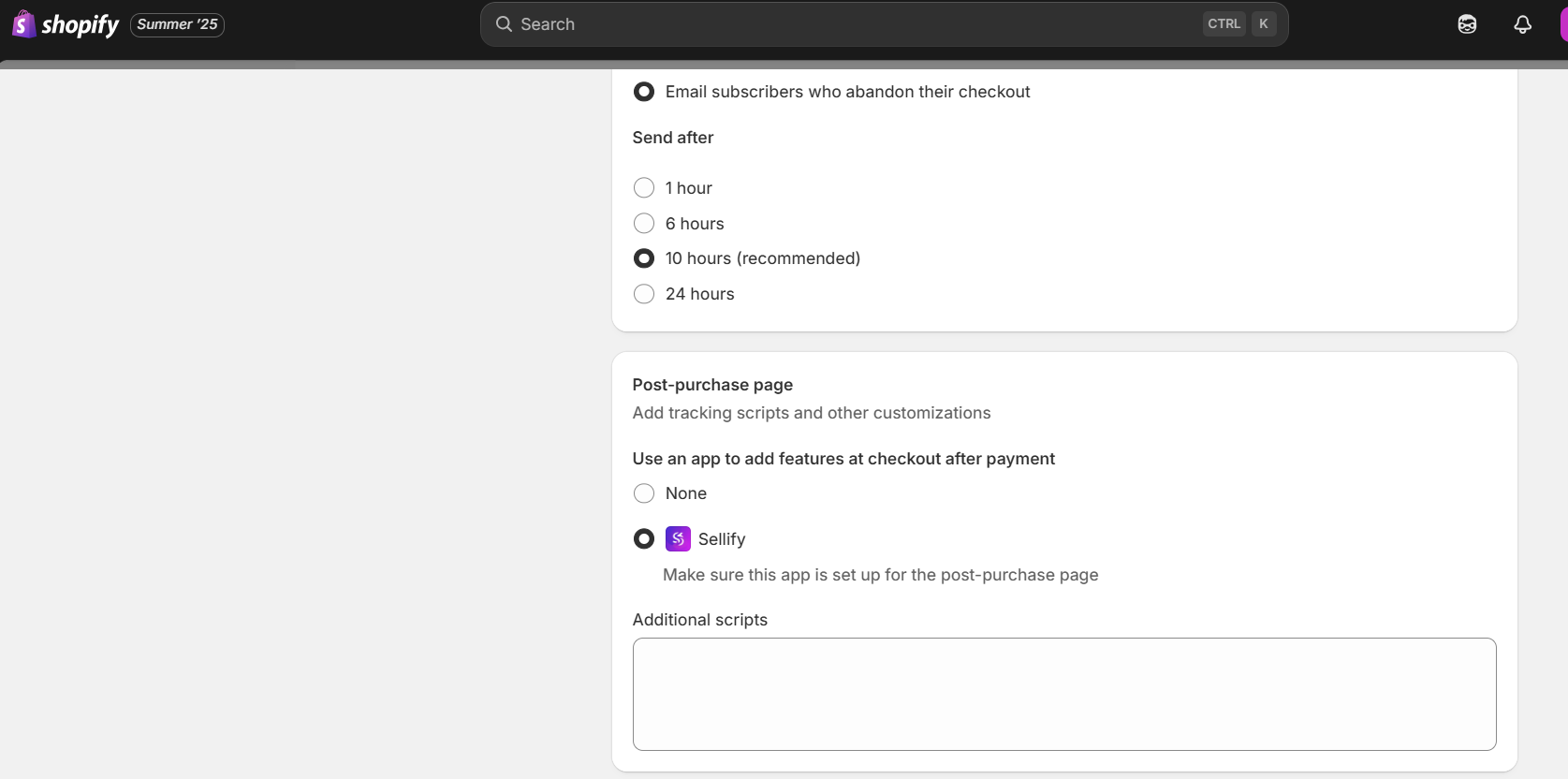
2. Validate Your Offer Setup
Ensure your offer configuration is complete:
- Verify you have an active sales funnel
- Create at least one upsell offer
- Review and confirm your trigger settings
- Check product inventory levels
3. Payment Method Compatibility
Note that Shopify post-purchase pages are not supported with certain payment methods:
- Gift cards
- Klarna
- Affirm
- Afterpay
- Apple Pay
- Amazon Pay
- Google Pay
4. Order Value Requirements
Orders must meet a minimum value threshold:
- Minimum order value: $0.50
- Free orders are not eligible for post-purchase offers
5. Currency and Shipping Considerations
- Multi-currency orders are not supported
- Orders without shipping addresses (e.g., cash on delivery, local pickup) will not display post-purchase pages
- Orders with duties are not eligible for post-purchase offers
6. Shopify Requirements
Ensure compliance with all Shopify requirements for post-purchase offers. For detailed information, refer to the official Shopify documentation.
Need Additional Help?
If you've checked all the above and your post-purchase page is still not showing, contact our support team for personalized assistance.